
On this page
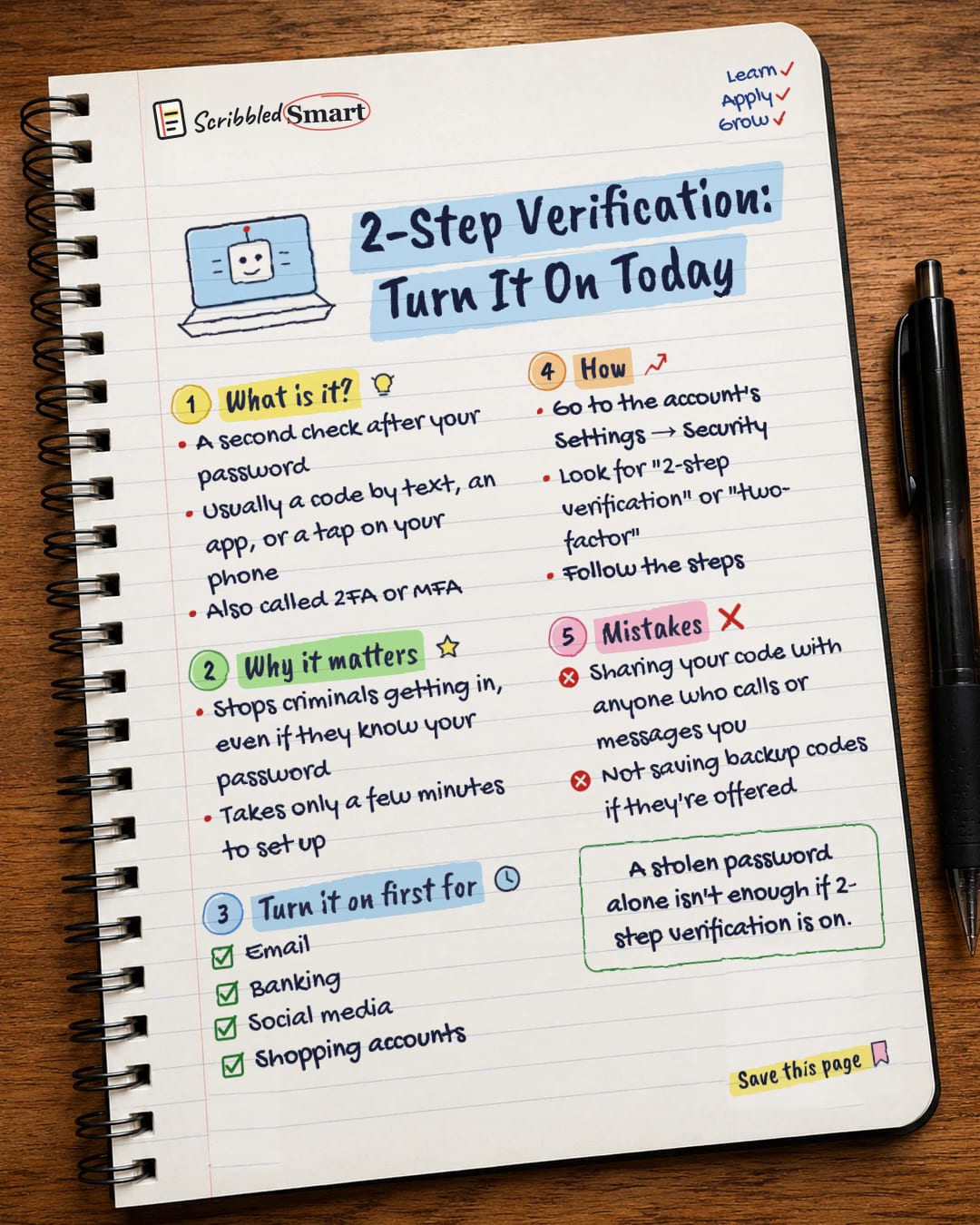
Two-step verification is a second check after your password, such as a code sent to your phone, that proves it's really you signing in. With it switched on, a criminal who knows your password still can't get into your account. The UK's National Cyber Security Centre (NCSC) says it only takes a few minutes to set up on email and banking accounts, so here's what it is, where to turn it on first, and how.
What is two-step verification?
Two-step verification asks for a second piece of information after your password, so a password on its own isn't enough to get in. According to the NCSC, this is often a PIN or code sent to you by text message (SMS) or email.
You may see it called by other names:
| Name | Short form |
|---|---|
| Two-step verification | 2SV |
| Two-factor authentication | 2FA |
| Multi-factor authentication | MFA |
They all describe the same basic idea: a second step that proves the person signing in is you.
Different ways to do the second step
A text code isn't the only option. The NCSC lists several methods that different services offer:
- A PIN or code sent by text message or email.
- An authenticator app, such as those provided by Microsoft or Google.
- A fingerprint or face scan, depending on the service.
- On some services, a landline number or a separate device such as a card reader or USB stick.
The NCSC also points to passkeys, describing them as "the more secure and user-friendly login method". If a service offers passkeys, they're worth a look.
Is two-step verification worth it?
Yes, because passwords get stolen, guessed or leaked, and a second check blocks the criminal anyway. The NCSC says 2SV helps stop criminals getting into your accounts even if they know your password.
Think of it like a front door with two locks. A thief who has copied one key still can't get in. And setup only takes a few minutes.
Which accounts should you turn it on for first?
Start with email and banking, which the NCSC names as priorities. Its 2SV page lists your most important accounts as email, banking, social media and online shopping. Our guide to a strong password for your email explains why email comes first.
Work through them in this order:
- ✓ Banking
- ✓ Social media
- ✓ Shopping accounts, especially ones that store your card details
How to turn on two-step verification
In most apps and websites, the option sits in your account or security settings. The exact place varies from service to service, but this usually works:
- Open the account's Settings, then look for Security (sometimes called "Sign-in" or "Account").
- Look for "2-step verification", "two-factor authentication" or "2FA".
- Follow the steps. You'll usually choose a method, such as a text code or an authenticator app, and confirm it works.
If you can't find it, search the service's help pages for "2-step verification".
Save your backup codes
Many services offer backup or recovery codes when you switch on 2SV. These let you get back into your account if you lose your phone. Save them somewhere safe, such as a password manager or a note kept away from your devices.
Common mistakes to avoid
- ✗ Sharing your code with anyone who calls or messages you. The code is there to prove it's you. Whoever has it could use it to get into your account.
- ✗ Not saving backup codes if they're offered. Losing your phone can lock you out without them.
- ✗ Stopping at one account. Protecting email is a great start, but banking, social media and shopping need it too.
- ✗ Putting it off. It takes minutes. Today is a good day.
FAQ
What is the difference between 2FA and two-step verification?
For everyday use, there's no practical difference. Two-step verification (2SV), two-factor authentication (2FA) and multi-factor authentication (MFA) are names for the same basic idea: a second check after your password, such as a code. The NCSC uses these terms together, so whichever one your account uses, switch it on.
Should I give my verification code to someone who calls me?
No. A verification code exists to prove that you are the person signing in. If you read it out to a caller or send it in a reply, you hand them the second lock on your account. Whoever is asking could use it to get in, so keep codes to yourself.
What happens if I lose my phone with two-step verification on?
This is what backup codes are for. Many services give you recovery codes when you switch on two-step verification, so you can still sign in if your phone is lost. Save them somewhere safe when you set it up, such as a password manager or a secure note kept away from your devices.
Related reading
- How to spot a scam message: the texts and emails that try to trick you into handing over codes.
- AI voice clone scams: why a familiar voice on the phone isn't proof of who's calling.
- How to spot a job scam: fake job offers that go after your personal details and accounts.
Sources
- NCSC: Top tips for staying secure online (2-step verification)
- NCSC: Shopping online securely (PDF)
- NCSC: Data breaches, guidance for individuals and families (PDF)
- NCSC: Activate 2-step verification on your email
How we checked this
Every fact in this article comes from the 4 sources listed above, checked against official or peer-reviewed sources where possible. AI tools help with drafting; a person checks every fact against the sources. How we research
- Published and checked
- Next check
- Yearly
General info, based on UK NCSC guidance. Each service sets up 2-step verification slightly differently, so follow its own instructions.
Spotted a mistake? Tell us and we'll fix it and log it on the corrections page.


