
On this page
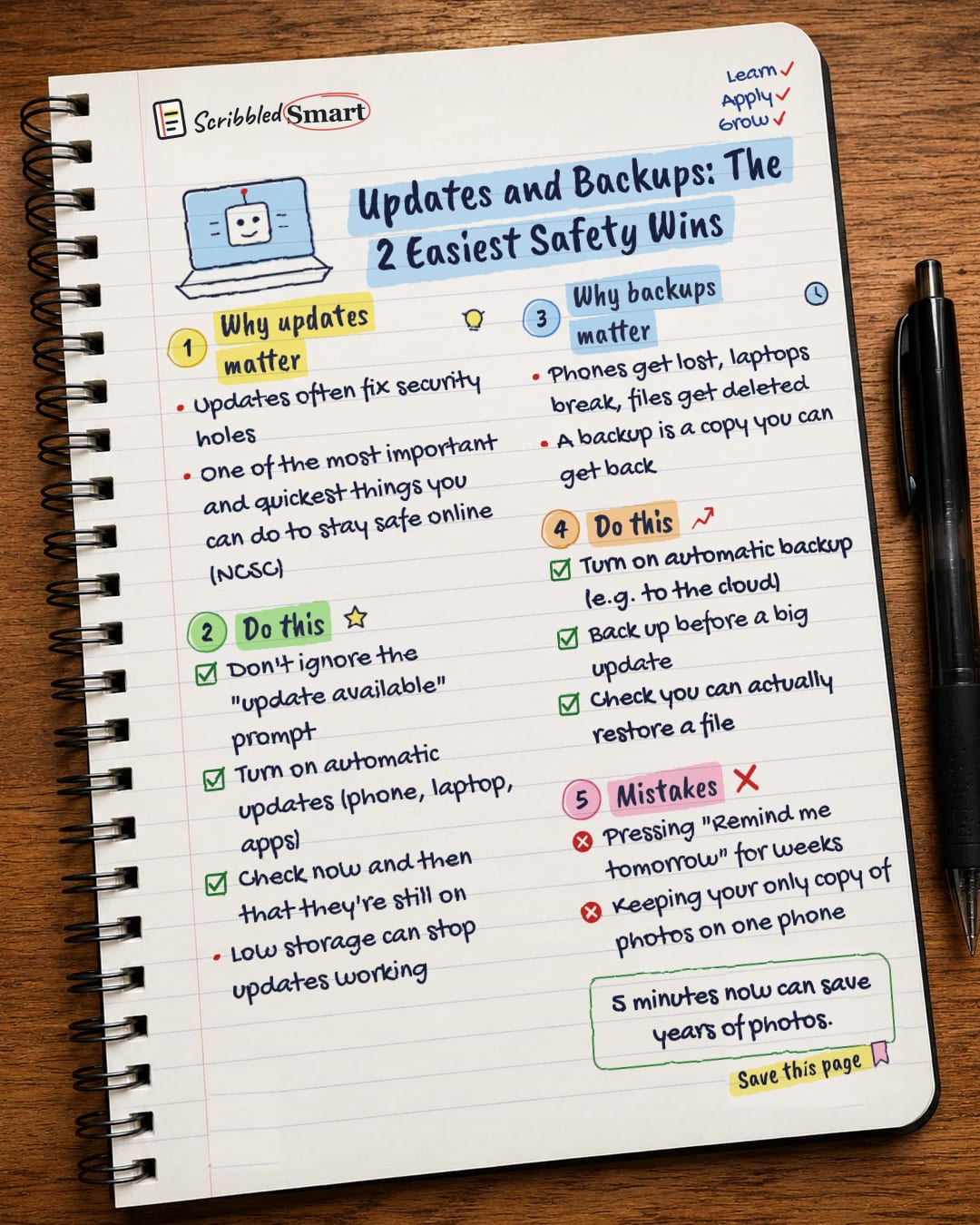
Updates and backups are two of the simplest things you can do to protect your devices: updates fix security holes, and backups mean you can get your files back if something goes wrong. The UK's National Cyber Security Centre (NCSC) calls installing updates one of the most important, and quickest, things you can do to keep yourself safe online. Both can be switched on once and then mostly left to run by themselves.
Why do software updates matter?
Updates matter because they often contain fixes for security weaknesses that criminals could otherwise use. Every app, phone and laptop runs software, and when a flaw is found, the maker releases an update to close it.
That's why the NCSC describes installing the latest software and app updates as one of the most important and quickest steps you can take.
How to keep your devices updated
Switch on automatic updates and let your devices do the work. These are the NCSC's main tips:
- ✓ Don't ignore the "update available" prompt. The NCSC puts it plainly: if you get a prompt to update your device or apps, don't ignore it.
- ✓ Turn on automatic updates. Do this for your phone, your laptop and your apps. The NCSC says most devices have this on by default, but it can be turned off.
- ✓ Check now and then that they're still on.
- ✓ Keep some storage free. Low storage can stop automatic updates from working. If your phone is full, clearing old files or apps can let updates go through.
"Remind me tomorrow" isn't a plan
It's tempting to tap "later" when an update pops up at a bad moment. That's fine once. But pressing "Remind me tomorrow" for weeks leaves the security holes open the whole time. If the timing is bad, choose a time that suits you, such as overnight, rather than putting it off again.
Why do backups matter?
Backups matter because devices get lost, break or get wiped, and without a copy, your files go with them. A backup is simply a second copy of your photos, documents and other files, stored somewhere else, that you can get back if you need it.
Think of the everyday ways things go wrong: a phone left on a train, a laptop that won't switch on, a folder deleted by accident. The NCSC says it's always a good idea to have backups, so one bad day doesn't cost you years of photos.
Backups and ransomware
Backups also help against ransomware. The NCSC describes ransomware as a type of malicious software (malware) that stops you getting into your device and the data on it, after which criminals demand a ransom. Its guidance says backups kept offline protect against it, and that you should always have a recent offline backup of your most important files and data.
How to back up your files
Set up an automatic backup once, then check it every so often. Three simple habits cover most of it:
- ✓ Turn on automatic backup, for example to cloud storage. NCSC guidance points to automatic cloud backup as a sensible option. Your phone or computer's settings will usually have a backup section.
- ✓ Back up before a big update. The NCSC says just before you update is an ideal time to back up, so you have a fresh copy if anything goes wrong.
- ✓ Check you can actually restore a file. A backup only helps if you can get your files back. Try restoring one photo or document to make sure it works.
Not sure what "the cloud" means? Our guide to what the cloud is explains it in plain English.
Updates and backups: common mistakes
Most of the mistakes below come down to putting updates off or trusting a single device with your only copy of something precious.
- ✗ Pressing "Remind me tomorrow" for weeks. Each delay keeps known security holes open.
- ✗ Keeping your only copy of photos on one phone. If the phone goes, the photos go too.
- ✗ Assuming automatic updates are on. They usually are by default, but they can be turned off. Check.
- ✗ Never testing a backup. Find out it works before you need it, not after.
Five minutes spent setting this up now can save years of photos later.
Related reading
- Strong passwords: the three random words rule, another quick NCSC safety step.
- Two-step verification: an extra lock for the accounts that hold your backups and email.
- How to spot a scam message: the NCSC's five warning signs, so a fake message doesn't undo your good habits.
Sources
- NCSC: Install the latest software and app updates
- NCSC: Keeping devices and software up to date
- NCSC: Vulnerability management, update by default
- NCSC: Cyber Essentials requirements for IT infrastructure v3.2 (PDF)
- NCSC: Ransomware
How we checked this
Every fact in this article comes from the 5 sources listed above, checked against official or peer-reviewed sources where possible. AI tools help with drafting; a person checks every fact against the sources. How we research
- Published and checked
- Next check
- Yearly
General info, based on UK NCSC guidance. Menus and settings differ between devices, so check your device maker's help pages.
Spotted a mistake? Tell us and we'll fix it and log it on the corrections page.


